Annotake
A Mac menu-bar app that turns on-screen actions into captioned screenshots for AI chats.
Annotake is a Mac app that records steps on your screen as screenshots with captions. It produces a card you can drag into ChatGPT, Claude, Cursor, or other image-capable chats. Listed under Productivity on UsefulShelf. Pricing: Free. Available on macOS.
https://usefulshelf.co/apps/annotake
Overview
Annotake is a Mac app that records steps on your screen as screenshots with captions. It produces a card you can drag into ChatGPT, Claude, Cursor, or other image-capable chats.
The problem
It helps when you need to explain a multi-step on-screen action to an AI without manually writing each step.
How it works
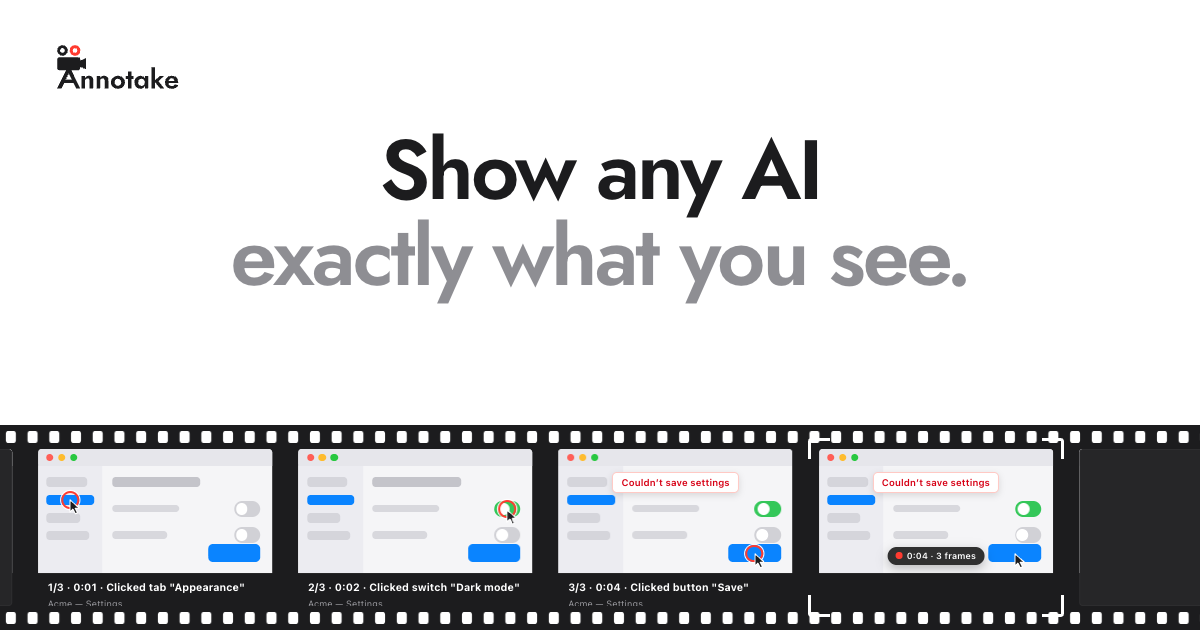
Press the hotkey, click through the actions in any app, then drag the generated card into your AI chat. The app turns each step into a captioned screenshot.
Key features
- Captures each step as a screenshot with a caption
- Lets you start and stop recording with a keyboard shortcut
- Exports recordings as PNG files and a steps.md file
- Lets you drag the recording card into ChatGPT, Claude, Cursor, or other image chats
What makes it different
It records locally on your Mac, uses pixel comparison and macOS Accessibility for captions, and does not upload your screen content.
Use cases
Use it when you need to show an AI a UI bug, a settings flow, or another multi-step screen action.
Every listing is reviewed before it goes live. How review works
Frequently asked questions
What is Annotake?
Annotake is a Mac app that records steps on your screen as screenshots with captions. It produces a card you can drag into ChatGPT, Claude, Cursor, or other image-capable chats.
Who is Annotake for?
Mac users who want to show an AI what they see on screen.
How does Annotake work?
Press the hotkey, click through the actions in any app, then drag the generated card into your AI chat. The app turns each step into a captioned screenshot.
What makes Annotake different?
It records locally on your Mac, uses pixel comparison and macOS Accessibility for captions, and does not upload your screen content.
When would someone use Annotake?
Use it when you need to show an AI a UI bug, a settings flow, or another multi-step screen action.
What are the key features of Annotake?
Captures each step as a screenshot with a caption. Lets you start and stop recording with a keyboard shortcut. Exports recordings as PNG files and a steps.md file. Lets you drag the recording card into ChatGPT, Claude, Cursor, or other image chats.
How is Annotake priced?
Its listing shows a free pricing model. Check the official website for current plans and limits.
Where can I use Annotake?
Annotake is available on macOS.
Where is the official Annotake website?
Annotake is at annotake.app. UsefulShelf links to it directly from this page.
Ratings & reviews
Real experiences. A little perspective for your next pick.
Tried Annotake?
Your experience can help someone find their next useful app.
Sign in to review One account. One honest review.One review per account. Makers can’t rate their own apps. Ratings reflect community opinions.
The first word could be yours.
Tried Annotake? A few honest lines can make someone’s decision a little easier.
Share your experienceKeep exploring
More useful apps to discover.