UsefulShelf
Technical SEO
How to Create an XML Sitemap (With Examples)
What an XML sitemap is, a valid example, which URLs to include, how Google uses lastmod, and how to submit your sitemap in Google Search Console.
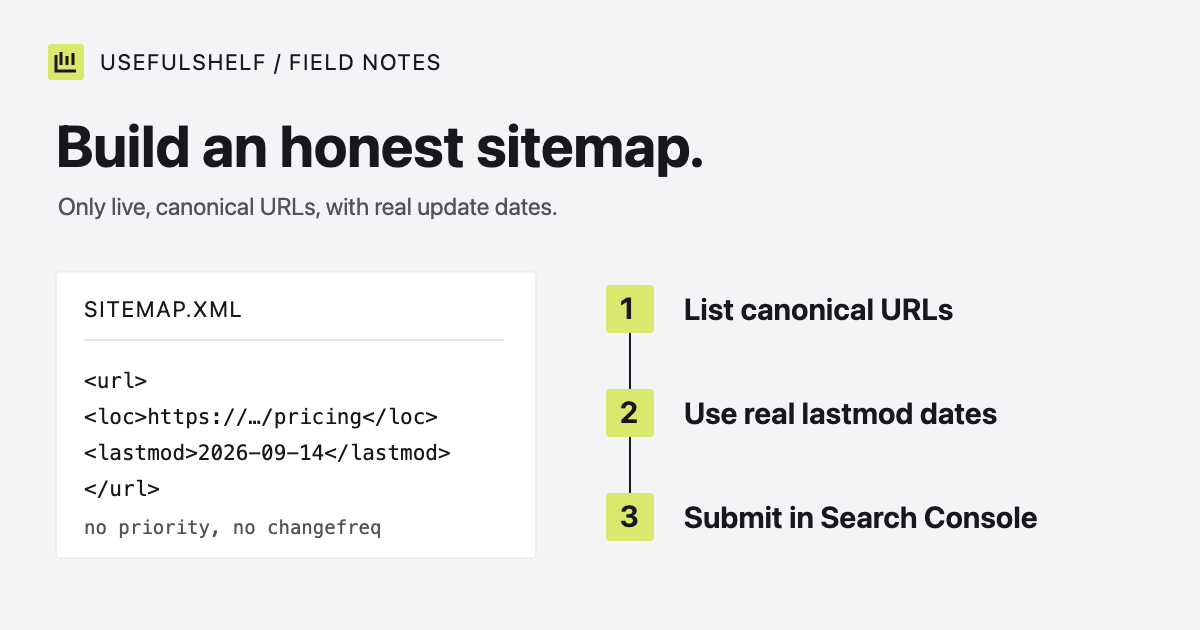
An XML sitemap is a file that lists the URLs on your site you want search engines to find. It helps them discover pages, especially new ones and pages with few links pointing to them. Google is careful about what it promises: submitting a sitemap “is merely a hint.”
This guide shows a valid XML sitemap example, explains which URLs belong in it and how lastmod works, and walks through submitting it to Google Search Console. The limits and rules below come from Google’s sitemap documentation, checked on October 1, 2026.
Do you need an XML sitemap?
Google’s sitemap overview says you might not need one if your site has about 500 pages or fewer, every important page can be reached by following links from the homepage, and you have few images, videos, or news pages you want in search results.
Most new sites still benefit. A sitemap costs little, gives Search Console something to report against, and helps when a page is new and nothing links to it yet. Sites that add pages often, such as directories, stores, and blogs, have the most to gain.
XML sitemap example
The smallest useful sitemap looks like this:
<?xml version="1.0" encoding="UTF-8"?>
<urlset xmlns="http://www.sitemaps.org/schemas/sitemap/0.9">
  <url><loc>https://example.com/</loc></url>
  <url><loc>https://example.com/pricing</loc></url>
  <url>
    <loc>https://example.com/blog/invoice-reminders</loc>
    <lastmod>2026-09-14</lastmod>
  </url>
</urlset>
Every loc is a full, absolute URL, and the file must be UTF-8 encoded. Escape characters such as & in URLs as &, or the XML becomes invalid.
One file can hold up to 50,000 URLs or 50 MB uncompressed. Beyond that, or when you want to group URLs, split them into several sitemaps and list those in a sitemap index. UsefulShelf does this: its sitemap.xml points to one sitemap for pages and guides and another for app listings.
<?xml version="1.0" encoding="UTF-8"?>
<sitemapindex xmlns="http://www.sitemaps.org/schemas/sitemap/0.9">
  <sitemap><loc>https://usefulshelf.co/sitemap-pages.xml</loc></sitemap>
  <sitemap><loc>https://usefulshelf.co/sitemap-apps.xml</loc></sitemap>
</sitemapindex>
Splitting by page type also makes Search Console’s reports easier to read, because you can see indexing status for each group separately.
Which URLs belong in a sitemap
A sitemap is a list of pages you want indexed, so every entry should be a page you would be happy to see in search results.
| Include | Exclude |
|---|---|
| Canonical URLs that return 200 | URLs that redirect or return errors |
| Public pages you want indexed | Pages with a noindex rule |
| The one preferred version of each page | Duplicates, tracking parameters, and sort or filter variants |
| New pages, as soon as they are public | Drafts, private pages, and pages behind a login |
Generate the list from the same rules that decide whether a page is public. On UsefulShelf, an app appears in the sitemap only after its listing is reviewed and published. Pending, private, and rejected listings never appear. A sitemap built from a separate, hand-kept list drifts out of date.
lastmod, changefreq, and priority
Google ignores <priority> and <changefreq>. You can leave them out.
It uses <lastmod> only if the value is “consistently and verifiably accurate,” meaning the date of the last significant change to the page’s content. Fixing a typo in the footer is not a significant change. Use the W3C date format: 2026-09-14 or 2026-09-14T09:30:00+00:00.
The common mistake is stamping every URL with the date of the latest deploy. Every page then claims to have changed, so the dates carry no information. If you cannot track real update dates, omit lastmod. That is what our generator does.
How to create a sitemap
- Use your platform’s built-in sitemap. Many content management systems and frameworks can generate one. Check that it follows the include and exclude rules above.
- Generate it from your data. For an app with database-driven pages, build the sitemap from the same query that lists public pages, and serve it at
/sitemap.xml. It stays current without anyone remembering to update it. - Generate a static file. For a small site with pages that rarely change, paste your URLs into the XML sitemap generator, download the file, and upload it to your site root. Regenerate it when you add or remove pages.
Post the sitemap at the site root. Google notes that a sitemap affects only URLs under its own directory, so a file at the root can cover the whole site.
How to submit a sitemap to Google Search Console
- Verify your site in Google Search Console.
- Open Sitemaps, enter the sitemap URL, and select Submit.
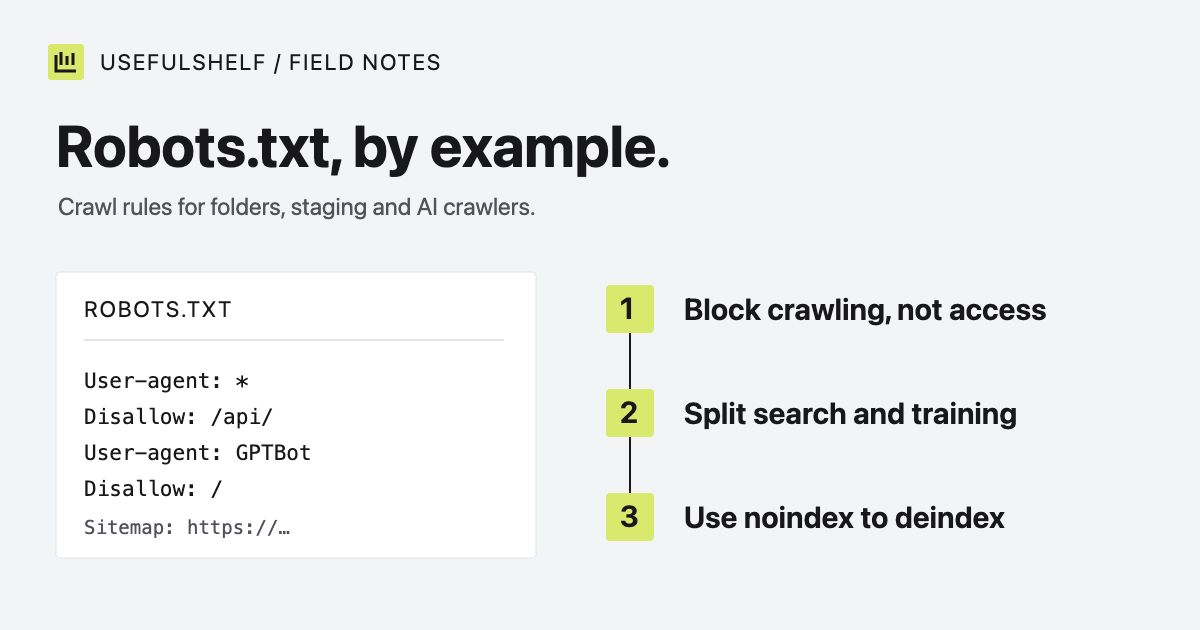
- Add a line to robots.txt so other search engines find it too:
Sitemap: https://example.com/sitemap.xml. Our robots.txt examples show where it goes. - Come back after a few days and check the Sitemaps report for errors, then the Page indexing report for each URL’s status.
Expect a gap between “discovered” and “indexed.” Google says crawling can take from a few days to a few weeks, and a sitemap does not guarantee that a URL will be crawled or indexed. Requesting indexing for individual URLs is limited by a quota, and asking repeatedly does not speed things up. Internal links from pages that are already indexed remain one of the clearest ways to show a new page matters.
Generate an XML sitemap
Paste up to 500 canonical URLs. The generator removes duplicates, escapes XML characters, and gives you a file to download.
Open the XML sitemap generator →Have a public app? A reviewed UsefulShelf listing gives it a server-rendered page with structured data, a category, and a direct website link. See how listings support discovery and the listing plans.